Importing Excel data into MySQL is a common requirement in admin panels, internal tools, and bulk data upload screens. In PHP, the most practical way to do this is to upload the Excel file, read it with PhpSpreadsheet, validate each row, and insert the data into MySQL using prepared statements.
In this tutorial, I will show a simple working example that imports an Excel file into a MySQL table using plain PHP and MySQLi. The demo accepts .xlsx and .xls files, skips the header row, validates important fields, and shows the imported rows after processing.
Quick Answer
To import an Excel file into MySQL using PHP:
- Upload the Excel file using a regular HTML form.
- Read the workbook with PhpSpreadsheet.
- Loop through the worksheet rows.
- Validate the required columns.
- Insert the data into MySQL with MySQLi prepared statements.
That is the full flow we will build in this example.
What this example covers
- Excel file upload with PHP
- Reading
.xlsxand.xlsfiles - Skipping the heading row
- Basic row validation
- MySQL insert using prepared statements
- Showing import success, skipped rows, and latest imported records
Before you start
This example uses:
- PHP 8+
- MySQL
- MySQLi
- PhpSpreadsheet
If you are new to handling uploads in PHP, you may also like this related guide on uploading files using PHP. Since this tutorial inserts user-provided data into a database, using prepared statements is important.
In the next section, we will create the database table and look at the project structure.
Database table
For this tutorial, we will import Excel rows into a simple tbl_users table. It stores the user’s name, email, phone, and created date.
CREATE TABLE `tbl_users` (
  `id` INT NOT NULL AUTO_INCREMENT,
  `name` VARCHAR(100) NOT NULL,
  `email` VARCHAR(150) NOT NULL,
  `phone` VARCHAR(30) DEFAULT NULL,
  `created_at` TIMESTAMP NOT NULL DEFAULT CURRENT_TIMESTAMP,
  PRIMARY KEY (`id`),
  UNIQUE KEY `uniq_email` (`email`)
) ENGINE=InnoDB DEFAULT CHARSET=utf8mb4;
The unique email key is useful here. It prevents duplicate email entries during repeated imports. In a real project, you can adjust the columns based on your Excel format.
Project structure
The downloadable project keeps the file structure small and easy to follow.
excel-import-project/
│── config.php
│── index.php
│── import.php
│── list.php
│── schema.sql
│── composer.json
│── README.md
│── uploads/
└── sample/
└── sample-users.xlsxconfig.phpcontains the database connection.index.phpshows the upload form and result messages.import.phpvalidates the uploaded file, reads the Excel sheet, and inserts rows into MySQL.list.phpdisplays the latest imported records.schema.sqlcreates the database table.sample-users.xlsxgives you a ready test file.
Install PhpSpreadsheet
This tutorial uses PhpSpreadsheet to read the Excel file. Install it with Composer inside your project folder.
composer require phpoffice/phpspreadsheetAfter installation, your project will include Composer’s vendor/autoload.php file. We will use that to load the library in the import script.
Sample Excel format
The Excel file used in this tutorial contains one header row and then the actual data rows.
Name | Email | Phone
John Doe | john@example.com | 9876543210
Jane Smith | jane@example.com | 9123456780
We will treat the first row as the heading row and skip it during import.
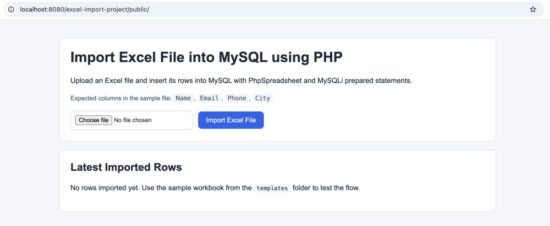
Sample Excel sheet used for PHP MySQL import
In the next section, we will create the database connection file and then build the upload form.
Create the database connection
Start with a small configuration file for the MySQL connection. This keeps the database code separate and easier to reuse.
<?php
declare(strict_types=1);

$host = 'localhost';
$dbname = 'test';
$username = 'root';
$password = '';

$mysqli = new mysqli($host, $username, $password, $dbname);

if ($mysqli->connect_error) {
    die('Database connection failed: ' . $mysqli->connect_error);
}

$mysqli->set_charset('utf8mb4');
Save this as config.php.
Create the upload form
Next, create the main page with a simple file upload form. This page also shows success and error messages after the import is complete.
<?php
declare(strict_types=1);

$successMessage = $_GET['success'] ?? '';
$errorMessage = $_GET['error'] ?? '';
?>
<!doctype html>
<html lang="en">
<head>
    <meta charset="utf-8">
    <meta name="viewport" content="width=device-width, initial-scale=1">
    <title>Import Excel File into MySQL</title>
    <link rel="stylesheet" href="assets/style.css">
</head>
<body>
    <div class="page-wrap">
        <h1>Import Excel File into MySQL</h1>
        <p>Upload an Excel file in XLS or XLSX format and import the rows into the database.</p>

        <?php if ($successMessage !== '') { ?>
            <div class="alert success"><?= htmlspecialchars($successMessage) ?></div>
        <?php } ?>

        <?php if ($errorMessage !== '') { ?>
            <div class="alert error"><?= htmlspecialchars($errorMessage) ?></div>
        <?php } ?>

        <form action="import.php" method="post" enctype="multipart/form-data" class="import-form">
            <label for="excel_file">Choose Excel file</label>
            <input type="file" name="excel_file" id="excel_file" accept=".xls,.xlsx" required>

            <button type="submit" name="import">Import Data</button>
        </form>

        <p class="helper-text">Accepted file types: .xls, .xlsx</p>

        <p><a href="list.php">View imported records</a></p>
    </div>
</body>
</html>
This form is intentionally simple. The user selects the Excel file and submits it to import.php.
Add light CSS for a clean demo UI
The topic here is the import logic, not the design. Still, a small amount of CSS makes the demo easier to read and better for screenshots.
body {
    font-family: Arial, sans-serif;
    background: #f5f7fb;
    color: #222;
    margin: 0;
    padding: 40px 20px;
}

.page-wrap {
    max-width: 720px;
    margin: 0 auto;
    background: #fff;
    padding: 24px;
    border: 1px solid #d9e0ea;
    border-radius: 8px;
}

h1 {
    margin-top: 0;
    font-size: 28px;
}

p {
    line-height: 1.6;
}

.import-form {
    margin-top: 20px;
}

label {
    display: block;
    font-weight: 700;
    margin-bottom: 8px;
}

input[type="file"] {
    display: block;
    width: 100%;
    max-width: 100%;
    padding: 10px;
    border: 1px solid #c8d2df;
    background: #fff;
    box-sizing: border-box;
}

button {
    margin-top: 16px;
    background: #1565c0;
    color: #fff;
    border: none;
    padding: 11px 18px;
    border-radius: 4px;
    cursor: pointer;
    font-size: 15px;
}

button:hover {
    background: #0f4fa0;
}

.alert {
    margin: 16px 0;
    padding: 12px 14px;
    border-radius: 4px;
}

.success {
    background: #edf7ed;
    color: #1b5e20;
    border: 1px solid #c8e6c9;
}

.error {
    background: #fdecec;
    color: #b71c1c;
    border: 1px solid #f5c6c6;
}

.helper-text {
    color: #555;
    font-size: 14px;
}
If you want a broader look at upload handling in PHP, this related PHPpot guide on file upload using PHP is also useful.
In the next section, we will write the import logic that validates the file, reads the spreadsheet, and inserts the rows into MySQL.
Import Excel data into MySQL using PHP
Now let us build the main import script. This file will:
- check whether a file was uploaded
- validate the extension
- move the uploaded file to a safe folder
- read the Excel sheet using PhpSpreadsheet
- skip the first row
- validate each data row
- insert valid rows into MySQL using a prepared statement
Create import.php with the following code.
<?php
declare(strict_types=1);

require __DIR__ . '/config.php';
require __DIR__ . '/vendor/autoload.php';

use PhpOffice\PhpSpreadsheet\IOFactory;

if ($_SERVER['REQUEST_METHOD'] !== 'POST') {
    header('Location: index.php');
    exit;
}

if (!isset($_FILES['excel_file']) || $_FILES['excel_file']['error'] !== UPLOAD_ERR_OK) {
    header('Location: index.php?error=' . urlencode('Please choose a valid Excel file.'));
    exit;
}

$uploadedFile = $_FILES['excel_file'];
$originalName = $uploadedFile['name'] ?? '';
$tmpName = $uploadedFile['tmp_name'] ?? '';

$extension = strtolower(pathinfo($originalName, PATHINFO_EXTENSION));
$allowedExtensions = ['xls', 'xlsx'];

if (!in_array($extension, $allowedExtensions, true)) {
    header('Location: index.php?error=' . urlencode('Only XLS and XLSX files are allowed.'));
    exit;
}

$uploadDir = __DIR__ . '/uploads/';
if (!is_dir($uploadDir)) {
    mkdir($uploadDir, 0775, true);
}

$safeFileName = 'import_' . date('Ymd_His') . '_' . bin2hex(random_bytes(4)) . '.' . $extension;
$destination = $uploadDir . $safeFileName;

if (!move_uploaded_file($tmpName, $destination)) {
    header('Location: index.php?error=' . urlencode('Failed to move the uploaded file.'));
    exit;
}

try {
    $reader = IOFactory::createReaderForFile($destination);
    $reader->setReadDataOnly(true);
    $spreadsheet = $reader->load($destination);
    $worksheet = $spreadsheet->getActiveSheet();
    $rows = $worksheet->toArray();
} catch (Throwable $e) {
    header('Location: index.php?error=' . urlencode('Unable to read the Excel file.'));
    exit;
}

if (count($rows) <= 1) {
    header('Location: index.php?error=' . urlencode('The Excel file does not contain data rows.'));
    exit;
}

$sql = "INSERT INTO tbl_users (name, email, phone) VALUES (?, ?, ?)";
$stmt = $mysqli->prepare($sql);

if (!$stmt) {
    header('Location: index.php?error=' . urlencode('Failed to prepare the database query.'));
    exit;
}

$importedCount = 0;
$skippedCount = 0;

foreach ($rows as $index => $row) {
    if ($index === 0) {
        continue;
    }

    $name = trim((string) ($row[0] ?? ''));
    $email = trim((string) ($row[1] ?? ''));
    $phone = trim((string) ($row[2] ?? ''));

    if ($name === '' && $email === '' && $phone === '') {
        continue;
    }

    if ($name === '' || $email === '') {
        $skippedCount++;
        continue;
    }

    if (!filter_var($email, FILTER_VALIDATE_EMAIL)) {
        $skippedCount++;
        continue;
    }

    $stmt->bind_param('sss', $name, $email, $phone);

    if ($stmt->execute()) {
        $importedCount++;
    } else {
        $skippedCount++;
    }
}

$stmt->close();

$message = "Import completed. Imported: {$importedCount}. Skipped: {$skippedCount}.";
header('Location: index.php?success=' . urlencode($message));
exit;
How this import script works
This script is small, but it does the important work in the right order.
- It accepts only
.xlsand.xlsxfiles. - It stores the uploaded file with a generated filename instead of trusting the original filename.
- It reads the sheet using
IOFactory, which is the standard approach recommended in PhpSpreadsheet documentation. - It skips the first row because that row contains column headings.
- It validates required values before inserting.
- It uses a prepared statement, which is safer than building raw SQL strings.
The script uses only the active sheet. That fits the likely search intent for this topic, which is a simple and practical Excel import example.
Why prepared statements matter here
Even though the data comes from an Excel file, you should still treat it as untrusted input. A spreadsheet can contain bad values, malformed text, or unexpected characters. Prepared statements help you insert data safely and cleanly.
For a deeper explanation, see this PHPpot guide on preventing SQL injection in PHP.
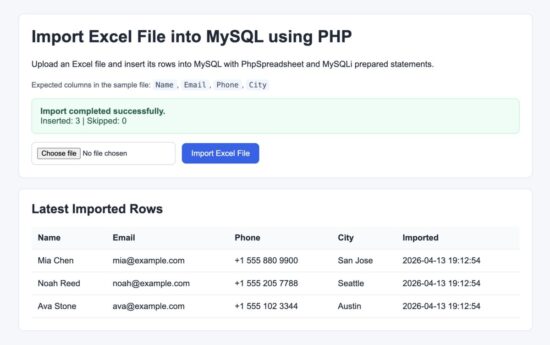
Excel import success message in PHP and MySQL example
In the next section, we will display the imported database records and then cover the key security points and common errors.
Show the imported records
After importing the Excel file, it is helpful to show the inserted rows. This gives quick confirmation that the import worked as expected.
Create list.php with the following code.
<?php
declare(strict_types=1);

require __DIR__ . '/config.php';

$result = $mysqli->query("SELECT id, name, email, phone, created_at FROM tbl_users ORDER BY id DESC LIMIT 50");
?>
<!doctype html>
<html lang="en">
<head>
    <meta charset="utf-8">
    <meta name="viewport" content="width=device-width, initial-scale=1">
    <title>Imported Records</title>
    <link rel="stylesheet" href="assets/style.css">
</head>
<body>
    <div class="page-wrap">
        <h1>Imported Records</h1>
        <p><a href="index.php">Back to import form</a></p>

        <?php if ($result && $result->num_rows > 0) { ?>
            <div class="table-wrap">
                <table class="data-table">
                    <thead>
                        <tr>
                            <th>ID</th>
                            <th>Name</th>
                            <th>Email</th>
                            <th>Phone</th>
                            <th>Created</th>
                        </tr>
                    </thead>
                    <tbody>
                        <?php while ($row = $result->fetch_assoc()) { ?>
                            <tr>
                                <td><?= (int) $row['id'] ?></td>
                                <td><?= htmlspecialchars($row['name']) ?></td>
                                <td><?= htmlspecialchars($row['email']) ?></td>
                                <td><?= htmlspecialchars((string) $row['phone']) ?></td>
                                <td><?= htmlspecialchars($row['created_at']) ?></td>
                            </tr>
                        <?php } ?>
                    </tbody>
                </table>
            </div>
        <?php } else { ?>
            <div class="alert error">No records found.</div>
        <?php } ?>
    </div>
</body>
</html>
Add these extra styles to the same CSS file.
.table-wrap {
    overflow-x: auto;
    margin-top: 20px;
}

.data-table {
    width: 100%;
    border-collapse: collapse;
    background: #fff;
}

.data-table th,
.data-table td {
    border: 1px solid #d9e0ea;
    padding: 10px 12px;
    text-align: left;
    vertical-align: top;
}

.data-table th {
    background: #f1f5f9;
    font-weight: 700;
}
Security considerations
This tutorial is simple, but a few security checks matter.
- Do not trust the uploaded file type alone. Checking the extension is useful, but for stricter validation you can also inspect the MIME type and handle upload errors carefully.
- Treat spreadsheet data as untrusted input. Excel content may still contain invalid or unexpected values. Always validate required fields before inserting into MySQL.
- Use prepared statements. This protects the insert query from unsafe input and keeps the SQL clean.
- Store uploads outside the public web root in production. In this demo, the upload folder is kept simple. For a real project, it is better to store uploaded files in a safer location.
- Limit file size. Large spreadsheets can consume memory and slow down imports. Set practical upload limits for your use case.
If you need more background on safe upload handling, read the PHP manual page for handling file uploads.
Common errors and fixes
- Composer autoload file not found
Runcomposer require phpoffice/phpspreadsheetin the project folder and make sure thevendordirectory exists. - The file uploads but nothing is imported
Check whether the Excel sheet uses the expected column order: name, email, phone. Also confirm that the first row is only the header row. - Some rows are skipped
This example skips rows with missing name, missing email, or invalid email format. That behavior is intentional. - Duplicate entry error for email
The table uses a unique key on the email column. If the same email already exists, that row will fail and be counted as skipped. - Permission denied on uploads folder
Make sure PHP can create and write to theuploadsdirectory on your local server.
In the next section, we will add a short developer FAQ and then finish with the download section.
Developer FAQ
Can I import both XLS and XLSX files?
Yes. This example accepts both .xls and .xlsx files. PhpSpreadsheet can read both formats.
Can I import Excel data into another table structure?
Yes. You can change the table columns and then update the column mapping in import.php. Just make sure the Excel column order matches your PHP import logic.
Can I update existing rows instead of skipping duplicates?
Yes. In that case, you can use a different SQL approach such as INSERT ... ON DUPLICATE KEY UPDATE. That is useful when you want the Excel file to refresh existing records instead of only adding new ones.
Can I import multiple sheets from the same workbook?
Yes, but this tutorial keeps things simple and reads only the active sheet. If your workbook has multiple sheets, you can loop through them using PhpSpreadsheet and process each one based on your project rules.
What is the best library for importing Excel files in PHP?
For modern PHP projects, PhpSpreadsheet is the most practical choice. It supports reading Excel files well and is widely used.
Should I use AJAX for Excel import?
You can, but it is not required for the core task. A normal form post is easier to understand and is enough for many admin-side import tools.
Download the source code
The full working example used in this tutorial is available as a downloadable project zip.
The download package includes:
- upload form
- import script
- database schema
- record listing page
- sample Excel file
- setup instructions
If you also need the reverse flow, PHPpot has a related tutorial on exporting data to Excel in PHP.
Conclusion
Importing an Excel file into MySQL using PHP is straightforward when you break it into small steps. Upload the file, read it with PhpSpreadsheet, validate each row, and insert the cleaned data into MySQL using prepared statements.
This example keeps the flow simple, which makes it a good starting point for intermediate PHP developers. From here, you can extend it with duplicate handling, better validation, column mapping, preview before import, or background processing for large files.

how the name of the excel file can be used to create the table name and then the first row of the sheet as the Column names and import the data to this table from row 2 onwards
Yes, it can be done.
Basic idea:
use the uploaded Excel filename as the table name, read the first row as column names, create the table dynamically, and then insert data from row 2 onward.
But do this carefully:
• sanitize the file name before using it as a table name
• sanitize the header values before using them as column names
• remove spaces and special characters
• validate everything before building the SQL
So the flow is:
get filename, make safe table name, read first row, make safe column names, run CREATE TABLE, then loop from the second row and insert the data.
It is possible, but dynamic table and column creation should be used carefully in real projects.
Nice one …this really solved my problem..
thanks vincy
Welcome Uzor. Happy it has helped you.
Why i can’t insert more than two rows?? I have 5rows only two get inserted
Hi Gebo,
This code is working for thousands of records. There should be something wrong in your input file. Do you get any errors?
thankyou, great idea
[autoload.php]
Where can I find this file? I searched for it in the attached files.
Hi Aboayoon,
You need to have Composer and do “composer require phpoffice/phpspreadsheet” This will bring in the autoload file the dependent vendor.
great tutorial, thanks alot
Welcome Umar.
Whats vendor, whats upload folder? you didn’t provide us with the most relevant information!
In the vendor folder you need to download the dependent and library and put it.
how we can download, how do I know what is dependency? plz share all files with dependency, If we know the whole process then why we visit your site and get help?
Hi Naeem,
I have covered this in the article. You need composer for dependency management. Its easy to do.
everything perfect thanks! how do i select only the first sheet? Thanks a lot!
In the custom loop, just skip the first record. A simple if-condition would suffice.
Superb tutorial Vincy , thanks
Welcome Sanjay.
How can we implement the same with angular call?
Yes. In Angular, the Excel file is usually sent to a PHP API using FormData.
So the flow is:
select file in Angular, send it with HttpClient, receive it in PHP, then run the same import logic on the server.
In short:
• Angular handles the file upload UI
• PHP reads the uploaded Excel file
• PHP imports the rows into MySQL
• Angular shows the success or error response
So Angular is only the front end here. The actual Excel reading and database import should still happen in PHP.
good!….u save my day
Welcome! Keep rocking!
This really helpful to me thank you
Welcome Pedro.
Thank You …………mam
Welcome Vikram.
but this technique doesnot work if you have to import exel files to database and bring them in web pages as a link
Hi Rajan,
What is the issue you are facing?
Really Good Vincy, It’s Working Perfect .
Thanks :) Keeo Going On .
Welcome Gaurav.
Thank you, it really worked.
My only problem is; How I would import a workbook with two or more worksheets please.
I remain thanks
Hi Anderson,
Need to enhance the code for reading multiple worksheets. I will post an article soon on it.
thank you. what should i do if i want to start at the 2nd row since the 1st row is for title such as name, description etc.
Hi Don,
You need to make a minor change in the code. Declare a counter outside the loop and use that counter to skip the record of your choice.
Hi there,
You have saved me a lot of time
Thank you Panagiotis! Keep reading and sharing :-)
Hello, I keep having this error: XMLReader::open(): Unable to open source data.
Is there anything I can do for this to be fixed?
Hi Saber,
This error is related to file path and you need to resolve that.
This really helpful to me thank you …mam
Welcome Prabhat
How can I check whether column name ‘Name’ & ‘Salary’ present in CSV or xlsx file or not?
But I want without using for loop.
Please check below code with for loop.
$Spreadsheet = new SpreadsheetReader($fileName);
$Spreadsheet->ChangeSheet($fileName);
print_r($Spreadsheet);
echo “”;
foreach($Spreadsheet as $key=>$val) {
if($key > 0) {
break;
}
$salaryIndex = array_search(‘Salary’, $val);
$nameIndex = array_search(‘Name’, $val);
}
Hi Aryan,
Yes. You can check only the first row and use in_array() or array_intersect() on the header row, instead of looping through all rows.
Example idea:
$Spreadsheet = new SpreadsheetReader($fileName);
$Spreadsheet->ChangeSheet(0);
$headers = $Spreadsheet->current();
if (in_array(‘Name’, $headers) && in_array(‘Salary’, $headers)) {
echo ‘Both columns exist’;
} else {
echo ‘Required columns are missing’;
}
So you do not need a full loop through the file. You only need to read the header row and check whether the required column names are present.
Thanks so much. The code helps a lot
Welcome Mosttony.
Thanks for your knowledge sharing with open source. Your code really helps me a lot.
Welcome Lakshman
Thank you.
Is this scripts works for Arabic characters especially when I want to import data from Excel sheet to Mysql
Hi Elhadi,
Yes, it can work with Arabic characters too.
The important part is to use UTF-8 properly in both PHP and MySQL. In MySQL, your table and connection should use utf8mb4, and the Excel file should contain normal Unicode text.
So if the database, table, and connection charset are set correctly, Arabic data should import fine.
how, if I want to enter 30.000 data?
For 30,000 rows, the main point is to avoid loading the whole sheet into memory at once.
A better approach is:
• read and process the file in smaller batches
• avoid toArray() for very large files
• use prepared statements
• increase execution time if needed
• add a unique key if you want to skip or update duplicates
So yes, 30,000 rows can be imported, but the script should be optimized for large files instead of using the simple basic version as-is.
Can we convert the Excel file even if it is password protected ? So that the user converting the file won’t be able to change the contents of the excel file.
It depends on the type of password protection.
If the file is only protected against editing, you may still be able to read and import it. But if the Excel file is fully encrypted with an open password, it usually needs to be unlocked first before PHP can process it.
So yes, sometimes it is possible, but not in all cases. The safest approach is to keep the source file protected and only allow your PHP script to read and import it, without giving users direct edit access.
Thank you very much, Vincy..!! This one is what I’m looking for..!!
Welcome Tommi
Great Tutorial! Learnt a lot. Thank you.
Welcome Rick.
Permission to download, this is exactly what i needed. Thank you
Its free for all. Go ahead and use it.
thanks vincy, you are the best
Welcome Dicky
Great Tutorial! I have an excel file that contains images in a cell. how can i read the cell image.
Hi Beena,
Yes, it is possible, but cell images are not read like normal text values.
In PhpSpreadsheet, images are handled through worksheet drawing objects, not through $sheet->getCell(). So you need to loop through the sheet drawings, extract each image, save it to the server, and then map it to the related row or cell.
So the short idea is:
read text from cells normally, read images separately from drawings, save the image file, then store its path in MySQL if needed.
It’s fantastic work,it helps me…Big Thanks
Thank you Tesfaye. Welcome.
this is helpful. Thanks. Best on Internet. it works.
Welcome Val
You deserve an accolade. Thanks for making my day
Welcome Samuel.
Hello, great work!
Please how do I replace a row if it already exist?
You can do that by using a unique field and changing the query to INSERT … ON DUPLICATE KEY UPDATE.
So if a row with the same unique value already exists, MySQL will update that row instead of inserting a new one.
Just make sure the matching column, such as email, ID, or product code, has a unique key in the table.
Work perfectly.
Thank you Joe.
Thanks for tutorial, but how to implement that using code igniter 3??
Hi Salman,
Yes, the same idea can be used in CodeIgniter 3.
High-level flow:
upload the Excel file using CI3 upload library, read it with PhpSpreadsheet, loop through the rows, validate the data, and then insert into MySQL using CI3 model functions.
So mainly you will split it like this:
• Controller for upload and import flow
• Model for database insert
• View for the upload form
• PhpSpreadsheet library for reading the Excel file
The logic stays almost the same. Only the project structure changes to match CI3 MVC.
thanks vincy..
Welcome Pg
Hi,
Great job, thanks a lot
Welcome Franco
Hai. The code work perfectly fine. Thank you so much. But can i know how to import multiple excel file into different table in MySQL. with just one import button.
Hi Dee,
Yes, it is possible.
You can use one form with multiple file inputs or a multi-file upload field, then in PHP loop through each uploaded Excel file one by one. For each file, apply separate import logic and insert its data into the required MySQL table.
So the idea is: one button, multiple files, loop through them, and map each file to its matching table before insert.
Thanks a lot Vincy ! It’s working perfect, good job :)
Welcome Jed
Could You Please Give Me A Text Outline Of The Excel Sheet?
Such As:
________________
Name, Description|
—————–|
fds, fsd |
—————–|
dfsf, fdds |
—————–|
Thanks!
Yes, something like this:
Name, Email, Phone
John Doe, john@example.com, 9876543210
Jane Smith, jane@example.com, 9123456780
Robert Lee, robert@example.com, 9988776655
The first row is the header row.
The next rows are the actual data to import.
Each column in Excel should match the database field you want to save.
Fatal error: Uncaught Error: Class ‘vendor\PhpOffice\PhpSpreadsheet\Reader\Xlsx’ not found in C:\xampp\htdocs\neco\index.php:24 Stack trace: #0 {main} thrown in C:\xampp\htdocs\neco\index.php on line 24 keep getting this error while trying to import
figured it out.
however is there a way to check against duplicate records in the excel while importing??
Hi Samuel,
You need to include the vendor files.
Uncaught Error: Class ‘PhpOffice\PhpSpreadsheet\Reader\Xlsx’ not found.
Hi, I am facing this error, can you please help me with this.
Hi Hritika,
You need to include the vendor files.
how i can increase the uploading size ?
Hi Azeem,
You can increase it in your PHP settings.
Check these values in php.ini:
• upload_max_filesize
• post_max_size
• max_execution_time
• max_input_time
Example:
upload_max_filesize = 20M
post_max_size = 25M
max_execution_time = 300
max_input_time = 300
After changing them, restart Apache or your PHP server. Also make sure post_max_size is larger than upload_max_filesize.
Thank you for this, i have one problem tho..how to import values only, not the formula?
Hi Mayor,
Yes, that is possible.
PhpSpreadsheet usually gives the calculated result of a formula cell, not the formula text itself, when you read the value normally. So to import values only, read the calculated cell value and insert that into MySQL.
In short: do not store the formula string, store the returned cell value.
Hi,
While importing on Windows with xamp it works perfect. However, when i import in debian with mysql (mariadb) the same code only imports 20 records and then Problem in Importing Excel Data.
Strange thing is thats 20 records are imported, the excel has much more rows.
Hi Bart,
That usually means the import is not failing on the Excel read itself, but on one specific row after the first 20 rows are inserted.
On Debian/MariaDB, common causes are stricter SQL settings, invalid date values, duplicate key errors, column length issues, or special characters/encoding in one row. XAMPP on Windows is often more forgiving.
The best next step is to print or log the actual database error using $stmt->error or $mysqli->error inside the loop. That will show the exact row and reason.
So the issue is most likely data-related or MariaDB strict-mode related, not the Excel file size itself.
I am importing file from one source and upload it into a php-msqle application similar to the one you explained above, is there anyway to get the destination application to reject the upload if the imported file has been modified or edited? i want the PHP to upload only the files that has been extracted from the source but not edited.
thanks
Hi Wael,
Yes, but PHP cannot reliably know that just by looking at the Excel file contents.
The usual way is to add some verification from the source system, such as a checksum, hash, digital signature, or hidden token, and then validate that during upload. If the file was edited after export, the verification will fail and you can reject it.
Without that kind of source-side validation, it is very hard to prove whether a file was modified or not.
Hi,
How can I update the record with the same name, this tools have just inserted new record and cannot overwrite old values, Thanks
Hi Curtis,
You can do that by making the name column unique, and then using INSERT … ON DUPLICATE KEY UPDATE instead of a plain INSERT.
That way, if the same name already exists, MySQL will update the old row instead of adding a new one.
Just be careful with name as the matching field, because names are not always truly unique. In most cases, using email, user ID, or another unique value is safer.
Thank so much Vincy.. keep posting
Welcome Vimalraj.
Hi, may i ask, how can i select specific sheet in xlsx before import it?
Hi Muhammad,
Yes. After loading the workbook, you can select the sheet by name or by index before reading the rows.
Example idea:
use $spreadsheet->getSheetByName(‘Sheet1’) if you know the sheet name, or $spreadsheet->getSheet(0) for the first sheet.
Then continue the import using that selected worksheet instead of the active sheet.
how about saving the Excel filename to mysql DB (import-template.xls)?
any idea on how to go about it?
Hi Wilson,
Yes, you can save the uploaded Excel filename to MySQL too.
After uploading the file, get the filename from $_FILES[‘file’][‘name’] and store it in a separate column like file_name during the insert.
If needed, you can also save the renamed server file instead of the original filename. That is usually better, because the original name may contain spaces or duplicates.
Great tuto, thx a lot,
Welcome Jissey
Thanks its great, also working here good but not working with dates. can you help to figure it out for me.
Hi Amjad Ali,
Yes, dates need a small extra conversion step.
Excel dates often come as either formatted text or serial numbers, while MySQL expects a proper Y-m-d or Y-m-d H:i:s value. So before insert, convert the Excel date into MySQL format.
In simple terms: read the date, convert it in PHP, then save the converted value to the database. That usually fixes the issue.
I want to check if null and assign a new value then insert the new value to Database. any thoughts and simple elaboration would do it
Hi Pro Brah,
Yes. You can check the cell value in PHP before the insert, and if it is empty or null, replace it with your default value.
Simple idea:
read the value, test it, assign a fallback value, then insert that final value into MySQL.
Example:
$name = !empty($row[0]) ? $row[0] : ‘Default Name’;
Then use $name in your insert query.
You can do the same for any column before saving it to the database.
Very helpful article and code. Thanks
Welcome Migs
Can I use this code in my commercial project?
Yes John, go ahead and use it. Free for all.
I have a unique case here. How do I upload my excel sheet on two databases runing on separate server via Application Programming Interface (API) call? In addition, I want the a situation where if data stored in database A is updated, the changes should be reflected in database B.
Kindly help post something on this. Thanking you always….
Yes. PHP cURL post with an API call can handle your situation.
Sure. I will post an example code in this soon.
Thank you for reading.
I do have an excel file linked to a database, what I need to do is when someone made an update in the file automatically the database should make an update too . how can i do that . thank you
Hi Malex,
Excel and MySQL do not stay synced automatically on their own.
You need a script or scheduled job that reads the updated Excel file again and then updates the database. Usually this is done by keeping a unique key such as ID, email, or product code, and using that key to update existing rows.
So the basic flow is: detect file change, re-import the file, and run update logic instead of plain insert.
hi, how can i check for and skip duplicate data, when importing
Hi Samuel,
You can prevent duplicates by adding a unique key in your MySQL table, for example on email, product_code, or any field that should be unique.
Then during import, use either:
• INSERT IGNORE to skip duplicate rows
• INSERT … ON DUPLICATE KEY UPDATE to update existing rows
That is the easiest and most reliable way. You can also check with a SELECT before insert, but that is slower for large imports.
Hi Vincy
Can you please guide how to read password protected file and how to read multiple excel files.
Hi Raj,
You can read multiple Excel files by looping through the uploaded files one by one and processing each file with the same import logic.
For password-protected Excel files, it is a bit different. PhpSpreadsheet has only limited support depending on the file type, and many protected files may need to be unlocked first before importing.
So for multiple files, yes, it is straightforward. For password-protected files, it depends on how the file is protected and may need a separate handling approach.
hey , vincy can you give me any idea about dynmaic sql insert in php . suppose if I don’t want to specify column name and it’s count and I also do not want to specify table name
Hi Priya,
You can do it dynamically, but you still need to know the table name and the column list at runtime from some source, such as the Excel header row or user input.
The usual approach is:
read the table name, fetch the column names, build the column list and placeholders in PHP, and then execute a prepared statement.
So yes, dynamic insert is possible, but it should be done carefully. Never pass raw table or column names directly without validation, because that can break the query or create security issues.
the vendor folder is empty why?
You can downloaded the dependency and put it in the vendor folder. Its easy.
can you please share the dependency file link..
I have given the steps in the article. You need to install Composer. Run composer install from project root. That’s it.
Where can we download the rest of the files?
I have given all the files in the downloadable zip available at the end of the article. To get the dependency, run Composer install.
It’s work perfect! Thank you @Vincy
Welcome Sentoso Huang
Suppose a new column is added in excel sheet then how can i dynamically/automatically make changes in the database without importing the excel sheet again and again…
Hi Adarsh,
Yes, it is possible, but it should be handled carefully.
First read the Excel header row and compare it with your database columns. If a new column is found, you can add it using an ALTER TABLE query before importing the rows.
So the basic idea is:
read header names from Excel, check existing table fields, add missing columns, then continue the import.
But fully automatic database changes can be risky in a live project. It is safer to validate the new column names and allowed data types before altering the table.
Awesome tutorial. Quick question though. Does this work for any version of php?
Hi Aditya,
Thank you. Yes it works in the latest versions of PHP.
Can I use this in my live project?
Hi Ceres,
Yes, of course. You can definitely use it in your live project.
Thanks for the project download
Welcome Sheena.
Good morning, nice work.
Thanks Valkis
Beautiful article
Thanks Emre
Thanks for this helpful article.
Welome Naxay.
Vincy
getting error like…
Fatal error: Uncaught Error: Class ‘PhpOffice\PhpSpreadsheet\Reader\Xlsx’ not found
all the files are in vendor folder and i have autoload.php file in vendor folder.
Can you please help.
Hi Rao,
You need to have Composer for dependency management and install PhpSpreadsheet.
Wow! what an article. Better than any found in the Net. God be with you.
Thank you Aberam.
Thanks for the excellent example.
Welcome Shubham.
Hello mam i want to keep in excel file image and text both to upload database through excelsheet using php mysql.
if is this possible, give me outline idea.
Yes, it is possible.
Text can be imported from cells as usual. Images can also be extracted from the Excel sheet, saved into a server folder, and then only the image filename or path can be stored in MySQL.
The main challenge is correctly matching each image to the right row. So it is possible, but it needs some custom handling beyond a normal Excel import.
Usually, this is done using PhpSpreadsheet.
The Excel file is read first for text data.
Then the embedded images are extracted separately.
Those image files are saved on the server.
After that, the saved image path is linked to the matching database row.
My excel sheet has too many records and I am getting an error message because of the memory. I added it ini_set(‘memory_limit’, ‘-1’); which loads all the records (15000 rows) but I get a message Problem in Importing Excel Data. any solution? Alternatively, can we have script to update the file (void duplicates) and add rows that do not exist in sql table?
For 15,000 rows, the problem is usually not just PHP memory limit. The script may also hit execution time, inefficient row loading, or duplicate-key failures during insert.
A few things usually help:
1. Do not use ini_set(‘memory_limit’, ‘-1’) as the real fix. That only removes the limit and can make the server unstable on large files.
2. Read the sheet in a lighter way and process row by row instead of loading everything into a big array with toArray().
3. Increase max_execution_time if needed, because large imports can take time.
4. Add proper error logging so you can see the real database or spreadsheet error instead of only showing Problem in Importing Excel Data.
5. Use a unique key in MySQL, such as email, product code, or invoice number, and then import with either:
• INSERT IGNORE to skip duplicates
• INSERT … ON DUPLICATE KEY UPDATE to update existing rows
So yes, you can absolutely make the script avoid duplicates and insert only new rows, or update existing rows if they already exist.
Excellent example project, thanks.
Welcome Mario.
My date in the excel file is formatted as such:
DatePurchased
1/27/2023
4/17/2023
When I import the excel, I get the following in my SQL columns 0000-00-00 00:00:00 for the date. Any suggestions to fix it?
That usually happens because Excel dates are often read as either formatted strings or Excel serial date numbers, and MySQL expects a proper Y-m-d H:i:s value.
In your case, values like 1/27/2023 should be converted before insert. If you are reading the cell with PhpSpreadsheet, first check whether it is an Excel date value, then convert it to PHP date format.
If you insert the raw Excel value directly into a DATETIME or DATE column, MySQL may store 0000-00-00 00:00:00 because it does not recognize the incoming format correctly.
So the fix is: convert the Excel date to MySQL format before executing the insert query.
hi, i have downloaded the PHPSpreadsheet on GitHub by clicking provided link. But i cannot find the autoload.php file. Please help with the vendor folder and its dependencies.
Hi Keita,
I have used Composer for PHPSpreadSheet. If you want to put the downloaded zip file, you need make a minor change to the project code where I use the autoload
Ihave included vedor folder but getting following errors.
Warning: require_once(vendor/autoload.php): Failed to open stream: No such file or directory in C:\xampp\htdocs\Projects\import-excel-to-mysql\index.php on line 8
Hi Sanjay,
You need to have Composer and do “composer require phpoffice/phpspreadsheet” to get the autoload
Vincy. You’re a legend!
Thank you Shay!
Hi Vincy,
I get the error as follow… “Warning: require_once(vendor/autoload.php): Failed to open stream: No such file or directory in H:\xampp\htdocs\import_excel\index.php on line 8”
Hi Edward,
You need to run “composer require phpoffice/phpspreadsheet” with composer for the dependent vendor.
Hi
Thank you. Simple and best tutorial. Easy to use example
Welcome Henry