The php.ini file is the main configuration file used by PHP. It controls how PHP behaves on your server or local development system.
For example, it can control whether errors are displayed, how large uploaded files can be, how long a script can run, how much memory a script can use, and how PHP sessions behave.
When a PHP application behaves differently between local, staging, and production, the php.ini file is one of the first places to check.
Quick answer: What is php.ini?
php.ini is PHP’s initialization file. PHP reads this file when it starts and applies the configuration directives defined inside it.
In a web server setup, PHP usually reads this file when the server or PHP-FPM process starts. So, after editing php.ini, you normally need to restart Apache, Nginx, PHP-FPM, XAMPP, MAMP, or the related service for the change to take effect.
The official PHP manual also explains that the PHP configuration file is loaded when PHP starts.
How PHP loads the php.ini file
PHP does not always use the same php.ini file in every environment. The loaded file can change based on how PHP is installed and how it is run.
For example, PHP used by Apache may load one php.ini file. PHP used from the command line may load another file. This is why a setting may work in the browser but not in the terminal, or the other way around.
The simplest way to find the loaded configuration file is to use phpinfo().
<?php
phpinfo();
Open this file in the browser and search for Loaded Configuration File. That value shows the exact php.ini file used by that PHP environment.
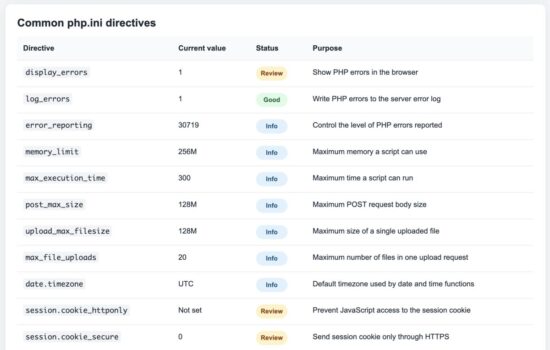
The phpinfo() page shows the active php.ini file used by your PHP installation.
You can also check it from the command line:
php --iniThis command shows the loaded php.ini file and any additional configuration files scanned by PHP.
Common php.ini file locations
The location of php.ini depends on your operating system and how PHP was installed. Here are some common locations.
Windows
C:\php\php.iniC:\xampp\php\php.iniC:\wamp64\bin\php\php8.x.x\php.ini
Linux
/etc/php/8.x/apache2/php.ini/etc/php/8.x/fpm/php.ini/etc/php/8.x/cli/php.ini
macOS
/opt/homebrew/etc/php/php.ini(Homebrew on Apple Silicon)/usr/local/etc/php/php.ini(Homebrew on Intel Macs)/Applications/MAMP/bin/php/php8.x.x/conf/php.ini(MAMP)
If you are unsure which file is being used, rely on phpinfo() or php --ini instead of searching manually. These methods always show the active configuration file.
How to edit the php.ini file
Open the php.ini file in any text editor with the required permissions. Make your changes, save the file, and restart the PHP service or web server.
For example:
- Restart Apache if PHP runs as an Apache module.
- Restart PHP-FPM if you are using Nginx with PHP-FPM.
- Restart XAMPP, WAMP, or MAMP if you are using a local development stack.
After restarting, verify that the new value has been applied by refreshing the phpinfo() page or by checking it from the command line.
Most commonly used php.ini settings
The following directives are the ones developers modify most often during development and deployment.
| Directive | Purpose | Example |
|---|---|---|
memory_limit |
Maximum memory available to a PHP script. | memory_limit = 256M |
max_execution_time |
Maximum script execution time in seconds. | max_execution_time = 60 |
upload_max_filesize |
Maximum size of a single uploaded file. | upload_max_filesize = 32M |
post_max_size |
Maximum size of POST request data. | post_max_size = 32M |
display_errors |
Shows PHP errors in the browser. | display_errors = On |
log_errors |
Writes errors to the configured log file. | log_errors = On |
date.timezone |
Sets the default timezone. | date.timezone = Asia/Kolkata |
Example: Updating common php.ini settings
The following example shows a few configuration directives that developers frequently change while developing or deploying PHP applications.
memory_limit = 256M
max_execution_time = 60

upload_max_filesize = 32M
post_max_size = 32M

display_errors = On
log_errors = On

date.timezone = Asia/Kolkata
These values are only examples. Choose limits that match your application’s requirements.
Increase the file upload limit
If users need to upload larger files, increase both upload_max_filesize and post_max_size. The post_max_size value should be equal to or larger than upload_max_filesize.
upload_max_filesize = 50M
post_max_size = 55M
Increase the memory limit
Memory-intensive operations such as image processing, report generation, or importing large files may require a higher memory limit.
memory_limit = 512MAllow long-running scripts
Some maintenance tasks, backups, or data imports take longer to complete. Increase the execution time only when necessary.
max_execution_time = 300Security considerations
The php.ini file can significantly affect the security of your application. A few simple settings can make your production environment much safer.
- Set
display_errors = Offon production servers. Displaying errors can expose sensitive information such as file paths and server configuration. - Keep
log_errors = Onso that errors are written to log files instead of being shown to visitors. - Set the correct
date.timezoneto avoid inconsistent timestamps in logs and applications. - Avoid increasing limits such as
memory_limitandmax_execution_timeunless there is a genuine requirement. - Restart your web server or PHP-FPM after making changes and verify that the new settings are actually loaded.
If you need to inspect your PHP configuration during development, our guide on PHP phpinfo() explains how to view all active PHP settings.
You can also find detailed documentation for every configuration directive in the official PHP configuration options reference.
Common errors and troubleshooting
Changes to php.ini are not taking effect
This usually happens because PHP is loading a different php.ini file than the one you edited.
Verify the active configuration file using phpinfo() or php --ini. After saving your changes, restart Apache, PHP-FPM, or your local development environment.
Uploaded files are still limited
If increasing upload_max_filesize does not help, check these related settings as well:
post_max_sizemax_file_uploadsmax_execution_timefor large uploads- Your web server configuration, such as Apache or Nginx upload limits
PHP CLI and browser show different settings
The command-line version of PHP and the web server version often use different configuration files. Compare the output of:
php --iniwith the Loaded Configuration File shown by phpinfo().
Syntax errors after editing php.ini
A missing character or invalid directive can prevent PHP from loading the configuration correctly. If PHP fails to start after editing php.ini, restore the previous version and review the changes carefully.
Frequently asked questions
Can I have multiple php.ini files?
Yes. Different SAPIs such as Apache, PHP-FPM, and the PHP CLI commonly use separate php.ini files.
Do I need to restart PHP after editing php.ini?
Yes. In most environments, you must restart Apache, PHP-FPM, or your local development stack before the new settings become active.
Can I change PHP settings without editing php.ini?
Yes. Depending on your hosting environment, you may be able to override settings using .user.ini, .htaccess, server configuration, or the ini_set() function. However, not every directive can be changed this way.
Where can I see the current value of a PHP setting?
Use phpinfo() in the browser or run php -i from the command line to view the active configuration.
Conclusion
The php.ini file controls many important aspects of PHP, from memory usage and execution time to file uploads and error reporting. Knowing where the file is located, how PHP loads it, and which directives are commonly used will help you troubleshoot configuration issues quickly.
Whenever you modify php.ini, verify that you edited the correct file, restart the appropriate PHP service, and confirm the updated values using phpinfo() or the command line.
Download the example project
The example project included with this tutorial helps you inspect your active PHP configuration from the browser. It displays commonly used configuration values and the location of the loaded php.ini file.


thanks
Welcome Ahmed.
Thank you. it is useful.
Welcome Khazra.
Very informative
Thank you Aditya.
thanks sister
Welcome Senthil.