The phpinfo() function prints detailed information about the PHP environment running on your server. It is commonly used to check the PHP version, loaded extensions, php.ini values, server API, environment variables, and module settings.
It is a simple function, but it should be used carefully. A public phpinfo() page can reveal server details that attackers may use. So, it is best used during local development or temporary debugging, and then removed.
In this tutorial, we will see how to use phpinfo(), how to show only selected sections, how to check common configuration values, and how to avoid exposing sensitive information.
What is phpinfo() in PHP?
phpinfo() is a built-in PHP function that displays information about the current PHP installation. It helps you inspect how PHP is configured on a server.
A basic phpinfo() page needs only one PHP statement.
<?php
phpinfo();
?>
When this file runs in the browser, PHP prints a full configuration report. This report can include the PHP version, system details, loaded configuration file, enabled extensions, environment variables, and many php.ini directive values.
The official PHP manual also documents the phpinfo() function and the constants that control which sections are displayed.
Create Your First phpinfo() Page
Create a new file named phpinfo.php inside your web server’s document root.
<!DOCTYPE html>
<html lang="en">
<head>
    <meta charset="UTF-8">
    <title>PHP Information</title>
</head>
<body>
<?php
phpinfo();
?>
</body>
</html>
Save the file and open it in your browser.
http://localhost/phpinfo.phpIf PHP is installed correctly, you will see a page containing your PHP configuration details.
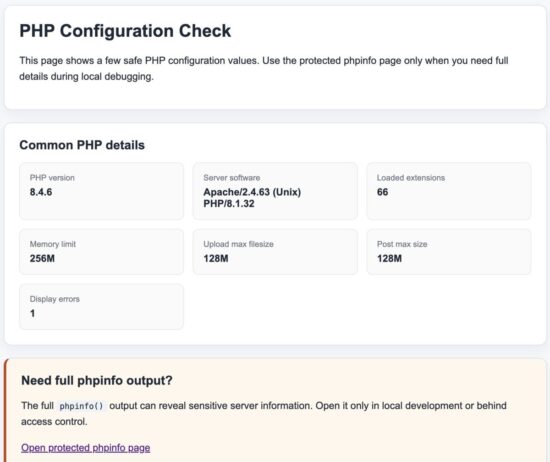
The default output generated by the PHP phpinfo() function.
If the page downloads instead of executing, or you see the PHP code displayed in the browser, your web server is not processing PHP correctly. Verify that PHP is installed and configured with your web server before continuing.
Understanding the phpinfo() Output
The output generated by phpinfo() is divided into multiple sections. Each section provides information about a specific part of your PHP installation.
| Section | What it tells you |
|---|---|
| PHP Version | The installed PHP version. |
| System | Operating system and server information. |
| Server API | How PHP is running, such as Apache Module, CGI, or PHP-FPM. |
| Loaded Configuration File | The active php.ini file used by PHP. |
| Additional .ini Files | Extra configuration files loaded after the main php.ini. |
| Extensions | Installed PHP extensions such as MySQLi, PDO, OpenSSL, GD, cURL, and mbstring. |
| Environment | Environment variables available to the PHP process. |
| PHP Variables | Values from the $_SERVER, $_ENV, and related superglobals. |
| License | Information about the PHP license. |
The following details are the ones developers check most often while debugging a PHP application.
- The active PHP version.
- The location of the loaded
php.inifile. - Whether extensions like
mysqli,pdo_mysql,curl,gd,openssl, andmbstringare enabled. - Values such as
memory_limit,upload_max_filesize,post_max_size,max_execution_time, anddisplay_errors. - The server API used to run PHP.
If you are troubleshooting an application, checking these values with phpinfo() is usually much faster than manually searching through configuration files.
Display Only Specific phpinfo() Sections
You do not always have to display the complete configuration page. The phpinfo() function accepts a bitmask that lets you show only the information you need.
For example, the following code displays only general PHP information.
<?php
phpinfo(INFO_GENERAL);
?>
You can also combine multiple constants using the bitwise OR (|) operator.
<?php
phpinfo(INFO_GENERAL | INFO_CONFIGURATION | INFO_MODULES);
?>
The table below lists the commonly used constants.
| Constant | Description |
|---|---|
INFO_GENERAL |
General PHP information, including version and build details. |
INFO_CONFIGURATION |
Configuration values loaded from php.ini. |
INFO_MODULES |
Information about installed and enabled PHP extensions. |
INFO_ENVIRONMENT |
Environment variables available to PHP. |
INFO_VARIABLES |
PHP predefined variables and server information. |
INFO_LICENSE |
PHP license information. |
INFO_ALL |
Displays every available section. This is the default when no argument is supplied. |
Displaying only the required sections makes the output easier to read and avoids exposing unnecessary information while debugging.
Common Uses of phpinfo()
Although phpinfo() displays a large amount of information, developers usually use it for a few common tasks.
Check the Installed PHP Version
The easiest way to confirm the PHP version running on your web server is by opening a phpinfo() page. The version appears at the top of the output.
This is useful after upgrading PHP or when verifying that your hosting environment is using the expected version.
Find the Active php.ini File
One of the most useful pieces of information is the Loaded Configuration File value. It shows the exact php.ini file currently being used.
This helps when configuration changes do not seem to take effect. You can verify that you are editing the correct file instead of another unused configuration file.
Verify That a PHP Extension Is Enabled
If your application requires an extension such as mysqli, pdo_mysql, curl, gd, mbstring, or openssl, you can quickly confirm that it is enabled.
Simply search for the extension name on the phpinfo() page. If it appears as a separate section, the extension is loaded successfully.
For example, if you plan to work with images, look for the gd section. It lists the supported image formats and the version of the GD library installed.
Check Important PHP Configuration Values
Many application issues are caused by PHP configuration limits rather than code.
The phpinfo() page lets you verify values such as:
memory_limitupload_max_filesizepost_max_sizemax_execution_timemax_input_varsdisplay_errorserror_reportingdate.timezone
If your application behaves differently across environments, comparing these values is often the quickest way to identify the cause.
If you need to change these settings, edit the appropriate php.ini file, restart your web server or PHP-FPM if required, and then refresh the phpinfo() page to verify that the new values are active.
Security Considerations
The phpinfo() function is extremely useful during development, but it should not be left accessible on a public website.
A phpinfo() page exposes detailed information about your server and PHP environment. While this information is intended for debugging, it can also help an attacker learn more about your system.
A public phpinfo() page may reveal:
- The PHP version.
- The web server and operating system.
- The location of the active
php.inifile. - Enabled PHP extensions.
- Environment variables.
- PHP configuration values.
- Server paths and document root.
None of these details are sensitive by themselves, but together they provide valuable information that can assist someone looking for known vulnerabilities or configuration weaknesses.
Follow these best practices when using phpinfo():
- Create the page only when you need it.
- Use it on your local development environment whenever possible.
- If you must use it on a live server, restrict access to trusted users or specific IP addresses.
- Delete the file as soon as you finish troubleshooting.
- Never link to a
phpinfo()page from a public website.
For production applications, avoid relying on phpinfo() for diagnostics. Instead, use proper logging and monitoring tools, and expose only the information that administrators need.
Common Problems and Fixes
The PHP Code Is Displayed Instead of Executing
If your browser shows the PHP source code instead of the phpinfo() output, your web server is not processing PHP files.
This usually means PHP is not installed correctly or the web server is not configured to use the PHP interpreter.
A Blank Page Is Displayed
A blank page can indicate a server configuration problem or a PHP startup error.
Check your web server’s error log and PHP error log for more details. If appropriate for your development environment, temporarily enable error reporting to identify the issue.
I Updated php.ini but Nothing Changed
First, check the Loaded Configuration File value on the phpinfo() page. Make sure you edited the same php.ini file that PHP is currently using.
After saving the changes, restart your web server or PHP-FPM service if required. Then refresh the phpinfo() page to verify that the new values are active.
An Extension Does Not Appear in phpinfo()
If an extension such as mysqli, curl, or gd is missing, it is either not installed or not enabled.
Enable the extension in your PHP configuration, restart the PHP service if necessary, and reload the page. If the extension appears as its own section, it has been loaded successfully.
The PHP Version in the Browser Differs from the Command Line
Running php -v in the terminal may show a different version from the one displayed by phpinfo().
This happens because the command-line interface (CLI) and the web server can use different PHP installations or different php.ini files.
Always use the browser output from phpinfo() when troubleshooting a web application, because it reflects the PHP environment serving your website.
Frequently Asked Questions
Does phpinfo() return a value?
No. The phpinfo() function outputs information directly to the browser and returns true on success.
How do I check my PHP version?
Create a file containing phpinfo(); and open it in your browser. The installed PHP version is displayed at the top of the page.
How can I find the active php.ini file?
Look for the Loaded Configuration File entry in the phpinfo() output. It shows the exact configuration file used by the current PHP installation.
Can I use phpinfo() on a production server?
Yes, but only for temporary troubleshooting. Restrict access to the page and remove it immediately after you finish. Leaving it publicly accessible is not recommended.
How do I know whether a PHP extension is installed?
Open the phpinfo() page and search for the extension name. If a dedicated section exists, the extension is enabled and available.
Conclusion
The phpinfo() function is one of the simplest yet most useful debugging tools available in PHP. It helps you verify your PHP version, locate the active php.ini file, inspect configuration values, and confirm that required extensions are loaded.
While it is invaluable during development and troubleshooting, remember to remove or secure any phpinfo() page before deploying your application to production. Following this simple practice helps keep your server information private while still giving you a reliable way to diagnose configuration issues when needed.
Download the Example Files
The example files used in this tutorial are available for download.
phpinfo.php– Displays the complete PHP configuration.phpinfo-sections.php– Demonstrates how to display selected information usingphpinfo()constants.README.md– Setup instructions and usage notes.

Nice, Well done.
Thanks Foga.